HTML/CSS 入门

HTML 入门


基本的 HTML 结构

每个网页都有一个基本结构,用来承载页面内容

基本结构

1
2
3
4
5
6
7
8
9
10
11
12
13
14
<!DOCTYPE html>
<html lang="en">
<head>
<meta charset="UTF-8" />
<meta name="viewport" content="width=device-width, initial-scale=1.0" />
<meta http-equiv="X-UA-Compatible" content="ie=edge" />
<title>Document</title>
</head>
<body>
<div>
hello world
</div>
</body>
</html>

HTML 重要概念 —— 标签

我们可以看到很多由尖括号包围的关键词组成了页面的基本结构,他们我们称之为标签。HTML 就是通过标签来描述网页的。

HTML 里面有两类主要的标签,分别是 div、span

1
2
3
4
5
6
<div>1</div>
<div>2</div>
<div>3</div>
<span>4</span>
<span>5</span>
<span>6</span>v

把这些代码嵌套在 HTML 基本结构的 body 标签里面,我们可以看到 div 类标签的内容会重启一行显示内容;而 span 则不会。

所以我们把具有这两类属性的标签分成两类;一类是块级元素,显示时会重启一行,一类是行内元素,显示不换行。(反过来是不对的)

块级元素

除了 div 还有哪些块级元素呢?

1
2
3
4
5
6
7
8
9
10
11
12
<h1>
-
<h6>
<p></p>
<ul></ul>
<ol></ol>
<header></header>
<footer></footer>
<article></article>
<section></section>
</h6>
</h1>

这些块级元素是为了语义化更加明显,比如 p 标签,代表段落,header 标签用于展示介绍性内容,footer 标签展示页脚。

示例一

1
2
3
4
5
6
7
8
<ul>
<li>h</li>
<li>t</li>
<li>m</li>
<li>l</li>
</ul>

<h1>hello world</h1>
行内元素
1
2
3
<button></button>
<input />
<img />

CSS 入门


在网页里面 HTML 主要负责显示内容,那么内容的具体样子呢?为什么有的字体大有的字体小?有的字体居左,有的字体居中?

HTML 显示的样式就是由 CSS 来负责的,那么我们如何引入 CSS 呢?

  • 内部样式表
  • 外部样式表
  • 行内样式表

引入 css 一共有这三种引入方式,今天我要给大家介绍的就是这个内部样式表。

1
2
3
4
5
6
7
8
9
10
11
12
13
14
15
16
17
18
19
20
21
<!DOCTYPE html>
<html lang="en">
<head>
<meta charset="UTF-8" />
<meta name="viewport" content="width=device-width, initial-scale=1.0" />
<meta http-equiv="X-UA-Compatible" content="ie=edge" />
<title>Document</title>
<style>
.box {
height: 100px;
width: 100px;
background-color: blue;
}
</style>
</head>

<body>
<div class="box">1</div>
<div>2</div>
</body>
</html>

这个 style 标签的写法就是内部样式表,大家把这段代码敲到文件里面看一下显示的样子?思考一个问题:为什么内容为 1 的盒子的样子与内容为 2 的盒子显示的结果不一样呢?

到底是什么原因导致 1 盒子与内部样式表的 CSS 属性联系起来了呢?

CSS 选择器

  • ID 选择器
  • 类选择器
  • 元素选择器
  • 通用选择器
ID 选择器

标签的 ID 是唯一的,就像我们的学号一样,每个人一定是不一样的。

1
2
3
4
5
6
7
8
9
10
11
12
13
14
15
16
17
18
19
20
21
<!DOCTYPE html>
<html lang="en">
<head>
<meta charset="UTF-8" />
<meta name="viewport" content="width=device-width, initial-scale=1.0" />
<meta http-equiv="X-UA-Compatible" content="ie=edge" />
<title>Document</title>
<style>
#box {
height: 100px;
width: 100px;
background-color: blue;
}
</style>
</head>

<body>
<div id="box">1</div>
<div>2</div>
</body>
</html>
类选择器

类选择器不同于 ID 选择器,可以不唯一

1
2
3
4
5
6
7
8
9
10
11
12
13
14
15
16
17
18
19
20
21
<!DOCTYPE html>
<html lang="en">
<head>
<meta charset="UTF-8" />
<meta name="viewport" content="width=device-width, initial-scale=1.0" />
<meta http-equiv="X-UA-Compatible" content="ie=edge" />
<title>Document</title>
<style>
.box {
height: 100px;
width: 100px;
background-color: blue;
}
</style>
</head>

<body>
<div class="box">1</div>
<div>2</div>
</body>
</html>

类选择器需要给指定标签添加 class 属性,并且指定与内部样式表内相应的内容相同的属性名字。

标签选择器

字面意思,其实就是选择标签的

1
2
3
4
5
6
7
8
9
10
11
12
13
14
15
16
17
18
19
20
21
<!DOCTYPE html>
<html lang="en">
<head>
<meta charset="UTF-8" />
<meta name="viewport" content="width=device-width, initial-scale=1.0" />
<meta http-equiv="X-UA-Compatible" content="ie=edge" />
<title>Document</title>
<style>
div {
height: 100px;
width: 100px;
background-color: blue;
}
</style>
</head>

<body>
<div>1</div>
<div>2</div>
</body>
</html>
通用选择器

通用:对所有都管用

1
2
3
4
5
6
7
8
9
10
11
12
13
14
15
16
17
18
19
<!DOCTYPE html>
<html lang="en">
<head>
<meta charset="UTF-8" />
<meta name="viewport" content="width=device-width, initial-scale=1.0" />
<meta http-equiv="X-UA-Compatible" content="ie=edge" />
<title>Document</title>
<style>
* {
margin: 0;
}
</style>
</head>

<body>
<div>1</div>
<div>2</div>
</body>
</html>
选择器总结

这四种选择器为 CSS 中最基本的选择器,每种选择器之间仅有两个地方不一样,一个内部样式表里面的写法,一个是标签里面的写法,简单记忆一下。

思考一个问题,如果我对于相同的标签设置了两个相同的选择器,选择器里面的内容不一样,那么显示的时候应该以谁为准呢?

思考一个新的问题,如果一个标签我既设置了 ID 选择器,又设置了 class 选择器,显示的时候又以谁为准呢?

物以稀为贵,代码里面就是以稀少的为准了。

组合器和选择器组

虽然一次使用一个选择器就很有用,但在某些情形中却可能导致效率低下。 CSS 选择器在你开始组合他们时就进行细粒度选择的会更加有效。基于元素之间的相互关联关系,CSS 提供了几种方法来对元素进行选择。下表使用连接符展示了这些关联关系(A 和 B 代表前文所述的任意选择器):
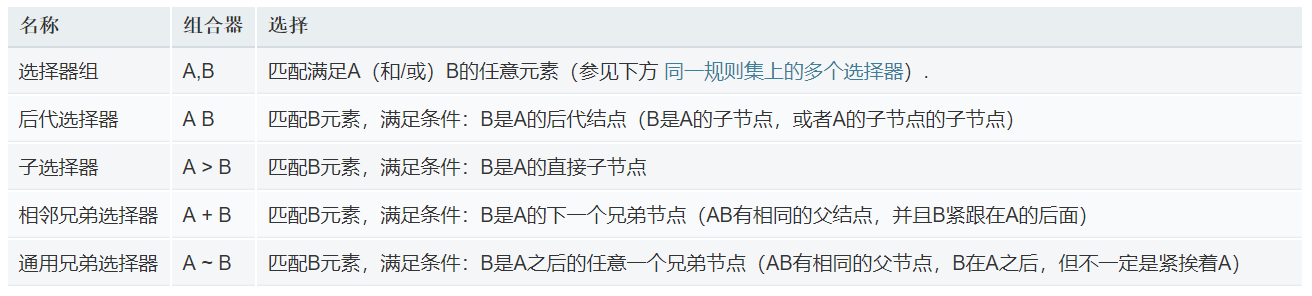
当你的项目复杂到一定程度,你可能会用到选择器组,那么到时候你一定不可避免的遇到选择器的优先级问题。

选择器优先级自由阅读

CSS 常用属性

基本样式
  • width 宽度
  • height 高度
  • background-color 设置盒子的背景颜色
    • red blue green 颜色单词
    • #888888 16 进制
    • rgb(red, green, blue)
    • rgba (red,green,blue,alpha)
    • alpha 表示透明度
  • background-image 设置盒子的背景图片
    • url(1.jpg) 默认状态下图片会平铺
  • background-repeat
    • no-repeat 不重复
    • repeat-x
    • repeat-y
  • background-size 设置背景图片的大小
    • x,y (x 为宽,y 为高)
  • border 边框 (集合样式)
    • border-width 边框宽度
    • border-style 边框样式
      • solid 实线
      • dashed 虚线
      • dotted 点线
    • border-color 边框颜色
      • red
      • rgb
      • #000000

练习

画一个宽为 100px,高为 100px 背景色为 red 的盒子,这个盒子的上边框是宽度为 10px,样式为实线的,颜色为黑色的边框;右边框是宽度为 5px,样式为点线的,颜色为蓝色的边框;下边框是宽度为 15px,样式为实线的,颜色为红色的边框,左边没边框。

文字相关
  • font-size
    • 20px
  • font-weight
    • bold (加粗)
    • normal
  • font-style
    • italic (斜体)
    • normal
  • font-family
    • “微软雅黑”
    • “宋体”
  • color
    • red blue green 颜色单词
    • #888888 16 进制
    • rgb(red, green, blue)
  • text-align 文本的对齐方式
    • left(default)
    • center
    • right
  • text-decoration (文本修饰)
    • underline;
    • line-through; 删除线
    • overline; 上划线
    • none(default)

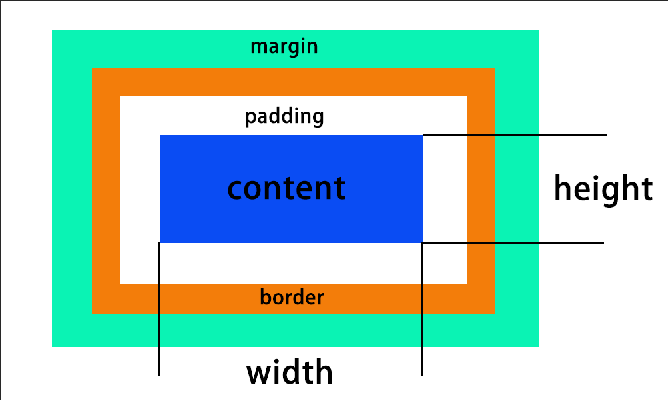
CSS 重要应用 — 盒模型

  • margin 设置盒子的外边距
  • padding 设置盒子的内边距

其实 margin 和 padding 的后面最多可接四个值,如:10px 20px 30px 40px

1
2
3
4
5
6
7
8
9
10
11
12
13
14
15
16
17
18
19
20
21
22
<!DOCTYPE html>
<html lang="en">
<head>
<meta charset="UTF-8" />
<meta name="viewport" content="width=device-width, initial-scale=1.0" />
<meta http-equiv="X-UA-Compatible" content="ie=edge" />
<title>Document</title>
<style>
.box {
height: 100px;
width: 100px;
background-color: blue;
margin: 10px 20px 30px 40px;
/* 同理,margin换成padding也是一样的 */
}
</style>
</head>

<body>
<div class="box">盒子一</div>
</body>
</html>

结论:四个值的时候从左到右的顺序分别是上边距,右边距,下边距,左边距;即上右下左顺时针的方向,除了这种方法外,我们还可以直接设置 margin-left

提问:那么三个值的时候呢?两个、一个呢?

margin 的重要应用-盒子的左右居中

1
2
3
4
5
6
7
8
9
10
11
12
13
14
15
16
17
18
19
20
21
<!DOCTYPE html>
<html lang="en">
<head>
<meta charset="UTF-8" />
<meta name="viewport" content="width=device-width, initial-scale=1.0" />
<meta http-equiv="X-UA-Compatible" content="ie=edge" />
<title>Document</title>
<style>
.box {
height: 100px;
width: 100px;
background-color: blue;
margin: 0 auto;
}
</style>
</head>

<body>
<div class="box">盒子一</div>
</body>
</html>

只要是网页布局一定会用到盒模型,重点记忆

盒子可视宽度与实际宽度

实际宽度:content + padding(左右的加起来) + border-width(左右的加起来) + margin(左右的加起来)
可视宽度:content + padding(左右的加起来) + border-width(左右的加起来)

并列的盒子
1
2
3
4
5
6
7
8
9
10
11
12
13
14
15
16
17
18
19
20
21
22
23
24
25
26
27
28
29
30
<!DOCTYPE html>
<html lang="en">
<head>
<meta charset="UTF-8" />
<meta name="viewport" content="width=device-width, initial-scale=1.0" />
<meta http-equiv="X-UA-Compatible" content="ie=edge" />
<title>Document</title>
<style>
.box1 {
height: 100px;
width: 100px;
background-color: red;
border: 10px solid #000;
margin-bottom: 30px;
}

.box2 {
width: 100px;
height: 100px;
background-color: blue;
margin-top: 20px.;
}
</style>
</head>

<body>
<div class="box1"></div>
<div class="box2"></div>
</body>
</html>

请问这种情况上下盒子距离多少?

嵌套的盒子
1
2
3
4
5
6
7
8
9
10
11
12
13
14
15
16
17
18
19
20
21
22
23
24
25
26
27
28
29
<!DOCTYPE html>
<html lang="en">
<head>
<meta charset="UTF-8" />
<meta name="viewport" content="width=device-width, initial-scale=1.0" />
<meta http-equiv="X-UA-Compatible" content="ie=edge" />
<title>Document</title>
<style>
.box {
height: 100px;
width: 100px;
background-color: red;
}

.inner-box {
width: 50px;
height: 50px;
background-color: blue;
margin-top: 10px;
}
</style>
</head>

<body>
<div class="box">
<div class="inner-box"></div>
</div>
</body>
</html>

请问这种情况下两个盒子上边的距离是多少?

避免的方法

  • 为父元素添加 border
  • 为父元素添加 padding
  • 为父元素添加 overflow:hidden(推荐)

练习

请完成一个宽高均为 100px,内边距为 20px,边框为 10px,边框颜色为蓝色,外边距为 5px 的 div

CSS 定位流

文档正常的布局我们称之为普通流,而文档经过定位以后的布局我们称之为定位流;

1
position: static|relative|absolute|fixed|sticky;
position: relative; 相对定位
  • 相对于其正常位置定位
  • 不影响元素本身的特性
  • 不使元素脱离文档流
  • 如果没有定位偏移量,对元素本身没有任何影响
  • 提升层级
position: absolute; 绝对定位
  • 使元素完全脱离文档流;
  • 使内联支持宽高;
  • 块属性标签内容撑开宽度;
  • 如果有定位父级相对于定位父级发生偏移,没有定位父级相对于 document 发生偏移;
  • 相对定位一般都是配合绝对定位元素使用;
  • 提升层级
position: fixed; 固定定位
  • 与绝对定位的特性基本一致,差别是始终相对整个浏览器窗口进行定位;
  • 提升层级

positon: sticky; 粘性定位

  • 粘性定位可以被认为是相对定位和固定定位的混合。元素在跨越特定阈值前为相对定位,之后为固定定位。

Z-index:Z 轴方向上的层叠定位。但默认情况下,后来者会覆盖前者,此时,如果需要改变层级关系,就要通过改变 z-index 值来实现。z-index 越大优先级越高。

超链接标签

1
<a href="http://www.baidu.com">点击跳转到百度</a>

href: 页面地址 注意跳转到某个网页的时候要加协议
例如: http://www.baidu.com

锚点
1
2
<a href="#box">跳转到锚点</a>
<div id="box"></div>
1
2
3
4
5
6
7
8
9
10
11
12
13
14
15
16
17
18
19
20
21
22
23
24
25
26
27
28
29
30
31
32
33
34
35
36
37
38
39
<!DOCTYPE html>
<html lang="en">
<head>
<meta charset="UTF-8" />
<meta name="viewport" content="width=device-width, initial-scale=1.0" />
<title>Document</title>
<style>
.box {
height: 150px;
position: fixed;
top: 0;
left: 300px;
background-color: coral;
}
div {
height: 300px;
width: 150px;
background-color: chartreuse;
}
</style>
</head>
<body>
<div class="box">
<a href="#box1">去1吧</a>
<a href="#box2">去2吧</a>
<a href="#box3">回来吧</a>
</div>
<div id="box3">回来吧</div>
<div>2</div>
<div>3</div>
<div>4</div>
<div>5</div>
<div>6</div>
<div id="box1">来跳转到一盒子</div>
<div id="box2">来跳转到二盒子</div>
<div>7</div>
<div>8</div>
</body>
</html>
超链接样式
1
2
3
4
5
6
7
8
9
10
11
12
<style>
a:link {
color: #ff0000;
}
a:visited {
color: green;
}
a:hover {
font-size: 150%;
}
</style>
<a href="http://www.baidu.com">点击去百度</a>

图片引入

1
<img src="./1jpg" />

src: 图片的地址
height: 设置图片的高度
width: 设置图片的宽度
alt: 当图片不显示的时候显示的文字

form 表单

1
<input type="text" />

type: 常用取值: text、password
placeholder:输入字段的提示
maxlength:规定输入字段中的字符的最大长度

1
<button>提交</button>